An easy guide for turning voice notes & podcasts into text with Audacity + OpenVINO Whisper
This guide helps you quickly turn audio voice notes, phone calls or podcasts into ready-to-edit text using Audacity and Intel’s OpenVINO Whisper plugin — no coding required. Take ANY MP3, Wav or audio file and extract the spoken word as text.
The best part is it is completely free, and open source, with no payment, subscription or ongoing cost. Below is the install process for Windows, follow the same sort of steps on Mac and “translate” for your operating system. Download the relevant files for your OS and device, links below.
Step 1. Install Audacity
If you are not already using Audacity then you need to install it. Click here:
Follow the installation steps (click “Next” a few times until complete).
Open Audacity to check it installed correctly and works.
Once Audacity is installed you are ready to install, configure and run the openVINO Whisper module for Audacity that transcribes. You also have a very powerful audio editing suite, that is absolutely 100% free to use, no subscription, credit card or email address required!
Step 2. Install the OpenVINO Whisper Plugin
This plugin allows Audacity to understand and transcribe speech directly inside the program.
Under the latest release, find the file that matches your version of Audacity (the most recent release should work) ending in `.exe` (for example, `openvino-whisper-win64.exe`).
Download it, then double-click the file to install.
Follow the setup prompts — it will automatically add the Whisper AI tools to Audacity. It may also prompt you to download additional files.
You want to download the “small” data set, it’s actually quite big, circa 5GB, so ensure you have the bandwidth and time to download. The “small” model is best for everyday business use — it’s accurate and usually transcribes 10 minutes of audio in about 1 minute.
Once everything is installed for the module you need to activate it within Audacity, so open the program and go to: Edit > Preferences > Import/Export > Modules
Find the module “mod-openvino” and select “enabled” from the drop down alongside the module’s name.
Finally, close and restart Audacity otherwise the module will not be active and the translation will not work.
Note: If the latest version of Audacity fails to recognise the module once it is installed then roll back to an earlier version of Audacity. Earlier versions are hosted here: https://www.fosshub.com/Audacity-old.html
Don’t worry if you have to roll-back to use an earlier version, we currently use: audacity-win-3.5.1-64bit and the corresponding plugin for that version.
Go to **File > Import > Audio** and choose your MP3 (call, voice note, podcast etc.).
(Optional) You can tidy up sound using:
Effect > Noise Reduction – to remove background noise.
Effect > Normalize – to make the voice clearer.
This is an optional step but might make transcribing your audio more accurate. Always record the best audio you can!
Step 4. Run the Whisper Transcription
Once your audio loads, select all the audio on the track you want transcribed. Click the “Select” button bottom left of the track controls on the LHS.
When the track is selected go to: Analyze > OpenVINO Whisper Translation
In the pop-up window select the following settings:
OpenVINO Inference Device: Select “CPU” if it is not preselected.
Select: Whisper Model: small (recommended — accurate and fast).
Select: Mode: Transcribe
Select: Source Language – English (or the language being transcribed)
Click “Apply”.
The audio is transcribed into a track titled “Transcription(small)” beneath the audio track being transcribed. You can transcribe multiple tracks inside one Audacity project, useful for multi-track audio.
Step 5. Save and Use Your Text
We now need to get the text out of Audacity, which you do as follows:
Select text transcription track, click “Select” button (bottom left of track controls on the LHS.)
Once selected go to: File > Export Other > Export Labels
Choose where you are saving the file and the file name.
Audacity will then export the transcription into a time stamped plain text file, with each line starting with a time stamp followed by the transcription on the same line.
You can then edit the text how you want to format it, making it into a single document, a blog post or allow you to quickly index the information for easy retrieval.
You can tweak and use this text for:
Blog posts
LinkedIn updates
Instagram captions
Email newsletters
It can also help when editing video or audio to see which sectons you want to chop outfor a rough edit before getting into the finer edit details.
Tips for Best Results
A few things to consider through this process
Record in a quiet space — clear sound gives better accuracy.
Use your phone’s voice memo app or a USB mic for cleaner audio.
Shorter the recording the faster the transcription.
Proofread before posting, AI transcription is about 95% accurate with perfect audio and good diction by the person speaking.
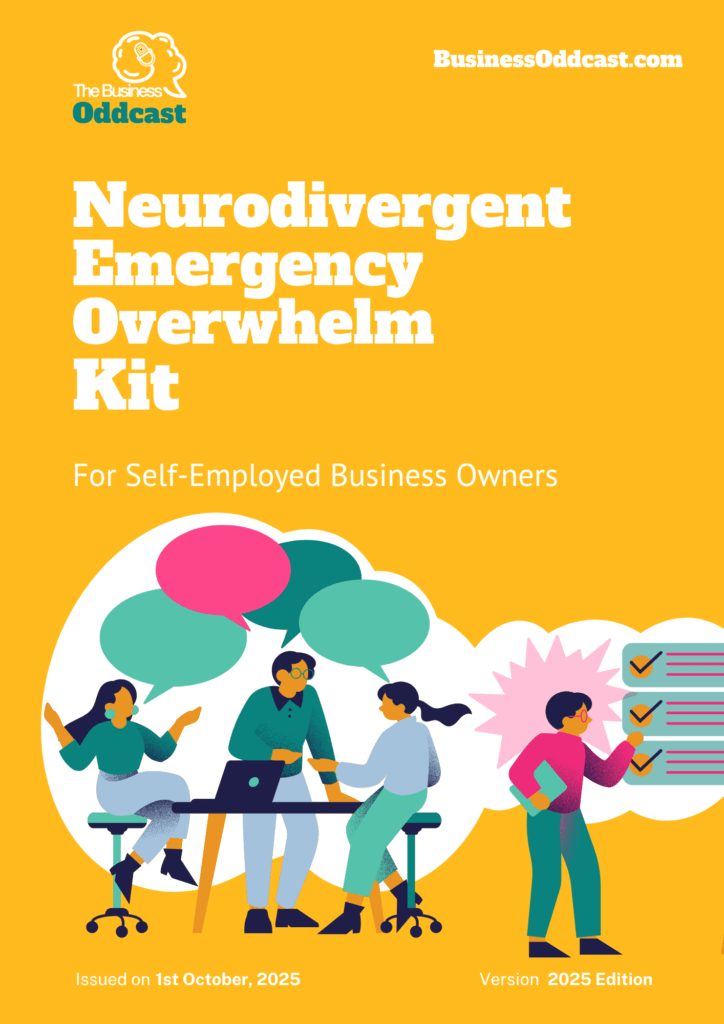
When you’re in the middle of overwhelm, making decisions is the last thing your brain can handle. That’s exactly why this kit needs to be in place before it happens.
The Neurodivergent Emergency Overwhelm Kit was created by Hannah & Stu at the Business Oddcast — two neurodivergent self-employed people who know from lived experience how fast overwhelm can spiral, and how much harder it is to recover when you had no plan ready.
This isn’t generic stress management advice. It’s a practical, neurodivergent-specific toolkit built around how ND brains actually work under pressure — and how to give yourself the best possible chance of de-escalating before things tip into burnout.
The Neurodivergent Emergency Overwhelm Kit helps you:
Recognise your early overwhelm warning signs before they escalate
Build a personalised de-escalation plan you can actually follow when you’re struggling
Reduce the decision-making load at the moments when your brain needs it most
Create space to recover without your business falling apart around you
Return to work refreshed rather than just pushing through and making it worse
The best time to put support in place is before you need it. That’s what this kit is designed for.
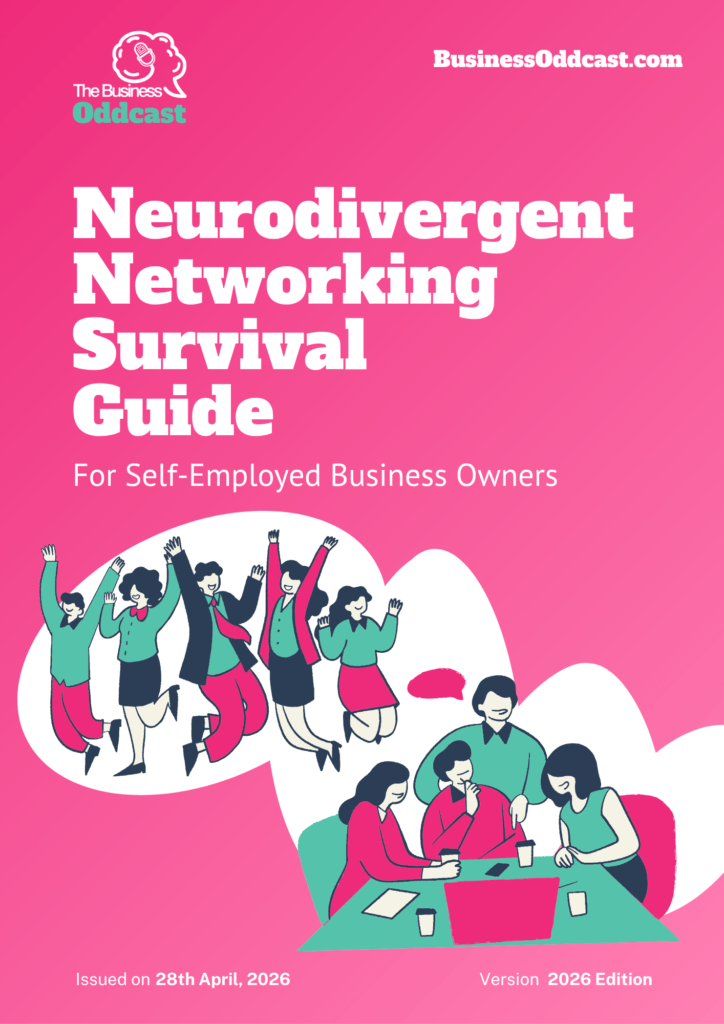
Networking is one of those things that neurotypical business advice makes sound easy. For most of us, it really isn’t.
The Neurodivergent Networking Survival Guide was put together by Hannah & Stu at the Business Oddcast — two self-employed neurodivergent people who have navigated the awkward small talk, the sensory overload, and the days-long social hangover that networking events can cause.
Whether you’re autistic, have ADHD, AuDHD, dyslexia, or any other neurotype, traditional networking advice wasn’t written with your brain in mind. This guide was.
What the Neurodivergent Networking Survival Guide covers:
How to prepare for networking events without burning through all your energy before you arrive
Scripts and conversation starters that don’t feel fake or forced
How to manage sensory overload and social anxiety in networking situations
Online and low-pressure alternatives to in-person networking
How to follow up after events in a way that actually feels manageable
Networking doesn’t have to mean masking for two hours and then needing three days to recover. With the right strategies it can actually work for you — on your terms.
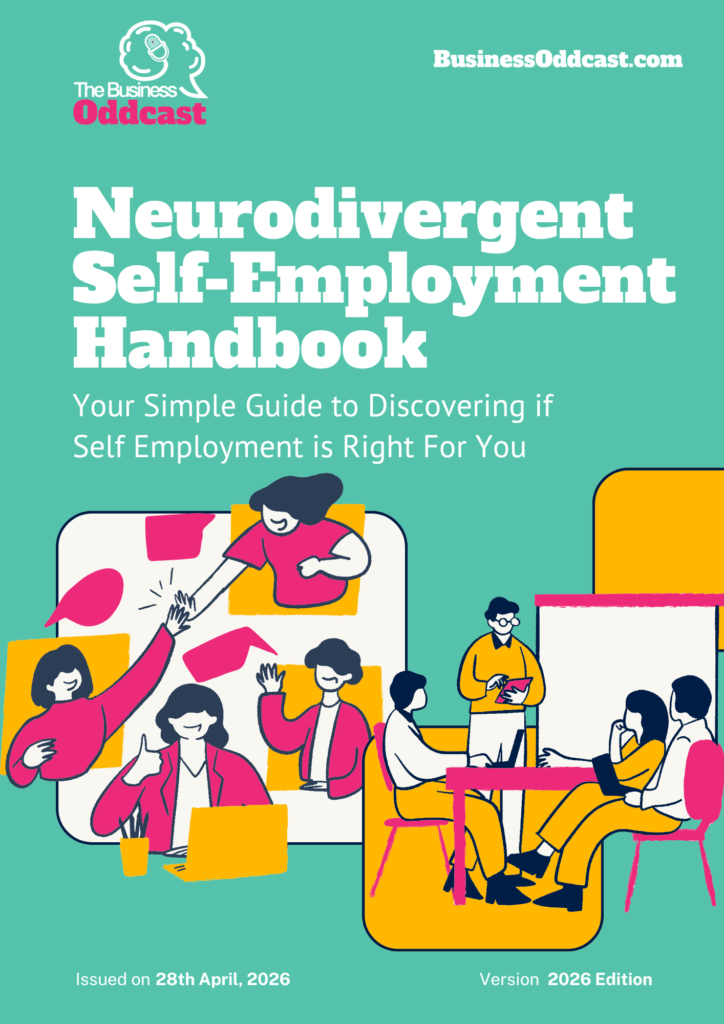
Self-employment can be a game-changer when you’re neurodivergent — if you approach it the right way.
The Neurodivergent Self-Employment Handbook was created by Hannah & Stu at the Business Oddcast — two self-employed neurodivergent people who know first-hand that traditional work advice wasn’t written for brains like ours.
PAYE employment often demands rigid hours, open-plan offices, and performance styles that quietly punish ADHD, autism, dyslexia, and other neurotypes. Self-employment flips that. It gives you control over your environment, your schedule, and how you manage your energy, which can make an enormous difference when you’re neurodivergent.
This free handbook covers what the mainstream business guides leave out:
How to structure your day around your neurotype, not against it
Managing energy (not just time) as a self-employed neurodivergent person
Practical tips for admin, finance, and the bits that feel overwhelming
Resources specifically useful for autistic and ADHD business owners
Whether you’re just considering going self-employed, or you’re already running your own business and hitting the same walls — this guide has something for you.